Share your Mac screen with a code
Help someone.
With one code.
Share the screen of a Mac with someone outside your Apple Account — for one connection or for good.
The Mac needs PocketRocket Host on macOS 26.1 or later. Both devices need an internet connection.

Do I need a code to connect to a Mac? — Your Mac computers—no.
Someone else’s—yes.
Your own Mac computers appear on their own: devices signed in to the same Apple Account find them through iCloud. To reach someone else’s Mac, its owner shares the screen and gives you a six-digit code.
Your Mac computers
Same Apple Account, found through iCloud. Nothing to type.
Someone else’s Mac
Its owner chooses Share Screen… in PocketRocket Host and reads you the code.
How it works
Three steps. About a minute.
On the Mac: Share Screen…
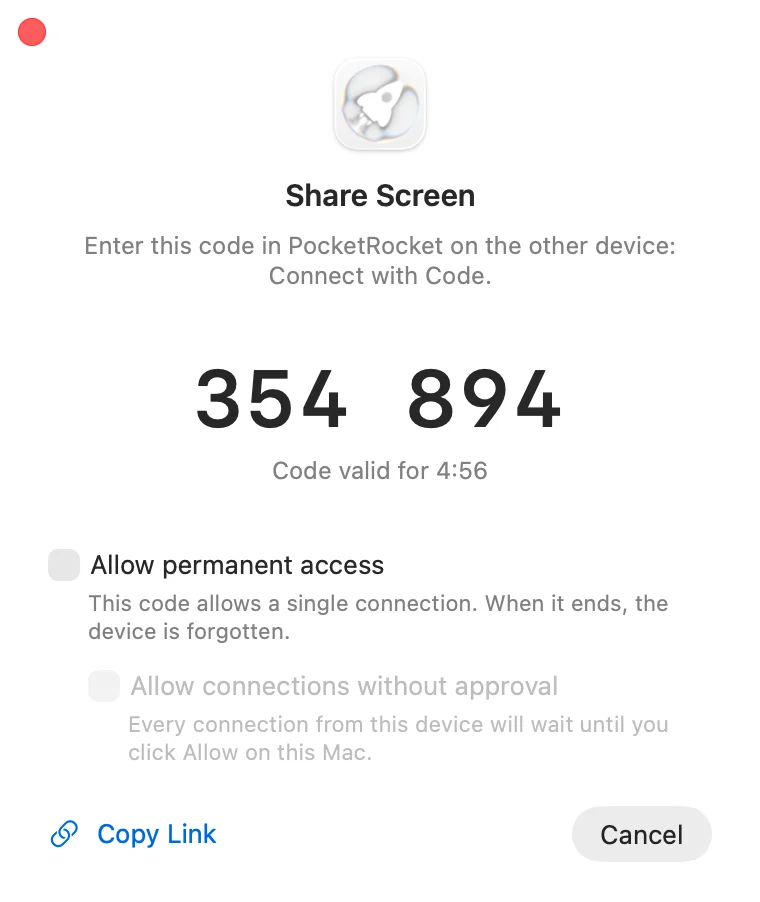
The owner clicks the rocket in the menu bar and chooses Share Screen…. A six-digit code appears. It’s valid for five minutes, and a new one appears when it expires.
On your device: Connect with Code
In PocketRocket, tap + and type the code — or paste it. It works on iPhone, iPad, Apple Vision Pro and Mac.
Compare the device key
Both screens show the same short device key. If they match, you’re connected to the right Mac.
Device key: 7KQ2-M9XD
Once, or for good.
Every code starts as a one-time connection. Tick Allow permanent access when the device should come back.
One-time connection
For quick help.
- One connection. If it drops, it can resume within 10 minutes.
- It ends when the other person disconnects, when someone uses the mouse or keyboard at the Mac, or when the Mac locks — after 12 hours at the latest.
- Nothing is saved on either device.
Permanent access
For family and your own team.
- The Mac appears under Shared with Me on every device signed in to the other person’s Apple Account.
- Connecting again needs no new code.
- Every connection waits for your approval on the Mac, unless you tick Allow connections without approval.
- You remove access in Settings › Paired Devices; the other person can remove the Mac from their library, too.
Your Macs
Shared with Me

The Mac owner has the last word.
The device you share with sees the screen of the Mac and can control it — so share it with people you trust. These keep you in charge.
Approve every connection
With permanent access, every connection waits for you: the Mac shows who wants to connect, with Allow and Deny. If nobody answers within 60 seconds, the connection is denied. The same buttons are in the notification on the Mac. A one-time code from Share Screen… connects once, without asking.
Take access back anytime
Remove a device or a whole iCloud account in Settings › Paired Devices. A session in progress ends at once.
Touch the mouse to end it
Using the mouse or keyboard at the Mac ends a one-time connection right away.
Some things stay yours
With one-time access, the other person can’t unlock the Mac at the login window. With permanent access, they can use Automatic login only if they know the password of the Mac—and your approval comes first, unless you allowed connections without approval. Nobody can click the approval windows remotely.
During a connection, the displays of the Mac are turned off or covered, so the session isn’t shown on the Mac itself.
Online Key Sharing. Send a link, not a code.
For someone who connects often, or a Mac you look after. Instead of reading out a code each time, send a secret link: the page behind it always shows a fresh code.
Turned on in PocketRocket Host
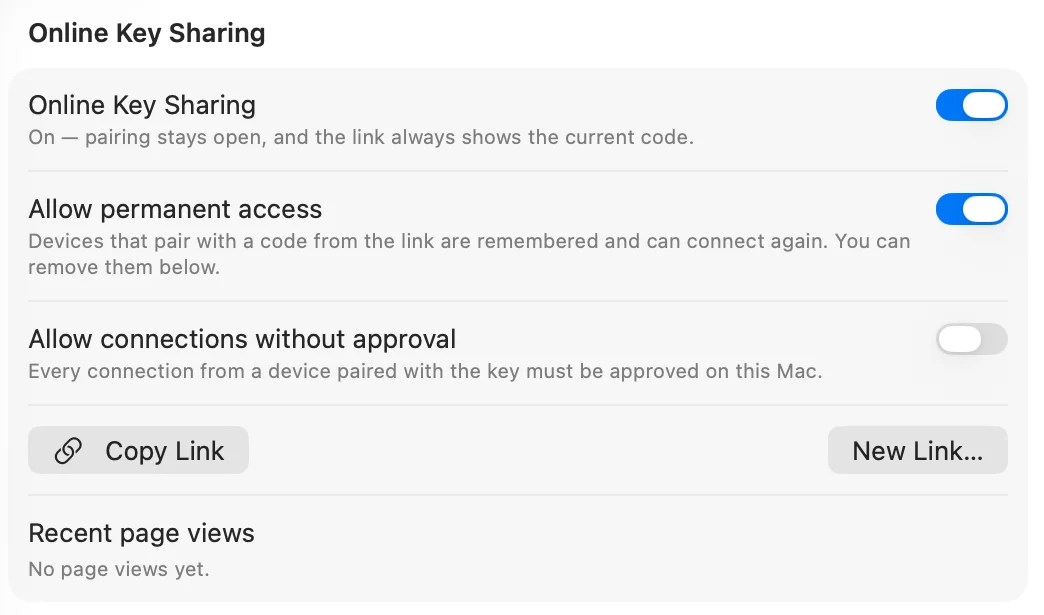
Open Settings › Paired Devices and turn on Online Key Sharing—at the Mac, or remotely from your own devices. If connections without approval are allowed, the Mac asks you to confirm first.
Copy Link, right in Share Screen…
Share Screen… keeps its own code and checkboxes; while Online Key Sharing is on, it also has Copy Link. The same button is in Settings, but the Mac never shows the full link. The copied link stays on this Mac—it doesn’t reach your other devices through Universal Clipboard—and leaves the clipboard after about two minutes, or as soon as a guest connects.
A new code for every connection
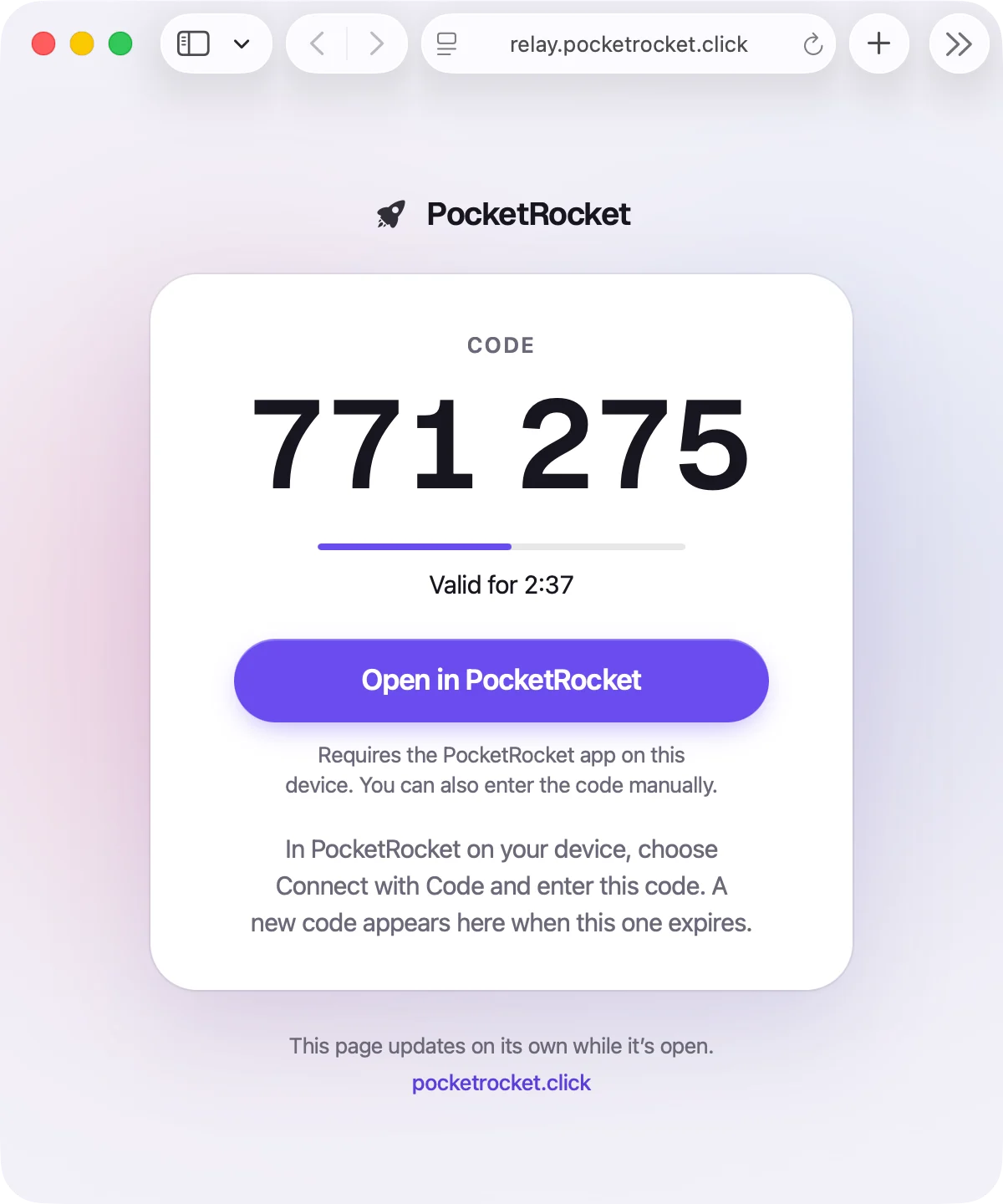
The link opens a page with a current code for your Mac. Each code works once—a new one appears after it’s used—and expires after five minutes. It’s separate from the code in Share Screen…, and both work at the same time. The page comes from our relay, but only your browser can decrypt the code. On a device with the PocketRocket app, Open in PocketRocket under the code connects with it—no need to type the code.
Your approval, every time
By default, a code from the link gives a single connection that waits until you click Allow on the Mac. Deny it, or leave it unanswered for 60 seconds, and that code is spent. When the connection ends, the device is forgotten. Every pairing through the link also shows a notification on the Mac.
Permanent access, if you choose
Turn on Allow permanent access in the Online Key Sharing section, and devices that pair with a code from the link are remembered and can connect again. Their connections still wait for your approval—unless you also turn on Allow connections without approval. The Mac warns you first, because then anyone who has the link can pair a device and take control of the Mac.
A new link anytime
New Link… stops the old link and the current code at once, and Recent page views show when the page was opened. Removing a device that paired permanently doesn’t stop the link—choose Remove and Create New Link, or anyone who still has it can get a new code. While Online Key Sharing is off, the page shows no code, and devices paired with the key need your approval again.
The Online Key Sharing switch, Copy Link and New Link… are in Settings › Paired Devices; the Mac doesn’t show the full link or the code from the page. While a guest is connected, Online Key Sharing can only be turned off or made stricter, and nothing the guest clicks there has any effect.
A code no one can overhear.
The code proves itself without ever crossing the network.
The code never travels
Both devices run CPace, a password-authenticated key exchange. Each attempt is one guess at most, and codes can’t be tested offline.
Three tries, five minutes
Three wrong attempts invalidate the code, and every code expires after five minutes. If three wrong codes come from one network within a minute, connecting with a code pauses there for a minute.
Our server doesn’t learn the code
PocketRocket’s server only sees a value derived from the code with Argon2id, and it limits attempts from each network.
End-to-end encrypted
The session is encrypted end to end with ChaCha20‑Poly1305, like the connections to your own Mac computers.
When it comes in handy.
Family
Help your parents with a setting without driving over.
Work
A colleague shows you the problem on their Mac, and you fix it.
Shared Mac
Give a teammate access to the studio Mac for a project — and take it back when it ends.
Before you start.
Leave your Mac at home. Take it everywhere.
Install PocketRocket Host
On the Mac you want to reach. It lives in the menu bar.
Get the PocketRocket app
On iPhone, iPad, Apple Vision Pro or another Mac.
Tap your Mac
Use the same Apple Account, and your Mac shows up on its own.
PocketRocket Host needs a Mac with Apple silicon and macOS 26.1 or later. The PocketRocket app is coming soon to the App Store.