Widgets, Siri and Shortcuts
Your Mac.
One tap away.
Connect from a widget, a control, Siri, Spotlight or a link—and see at a glance which Mac is ready.
Available in PocketRocket for iPhone, iPad, Mac and Apple Vision Pro. Some features are on certain devices only—see the table below.



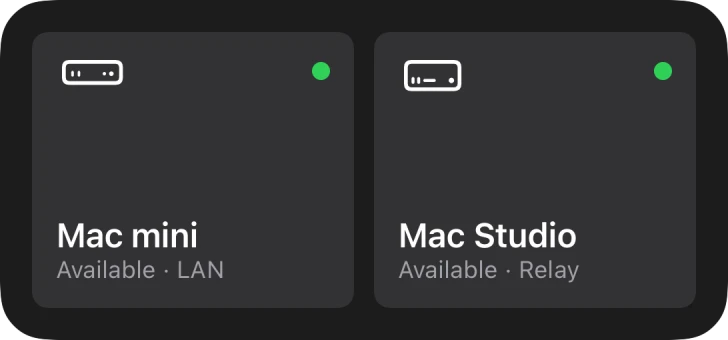
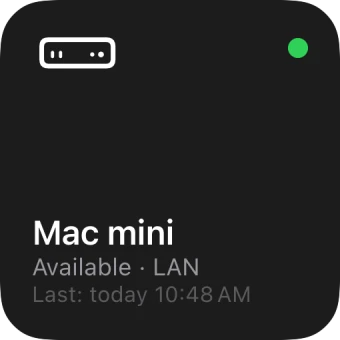
Do I have to open PocketRocket to connect to my Mac? — Not anymore.
Widgets show which Mac is ready, and a tap connects. Controls, Siri, Shortcuts, Spotlight and links take you straight to your Mac as well—PocketRocket opens already connecting.
Widgets
See which Mac is ready. Tap to connect.
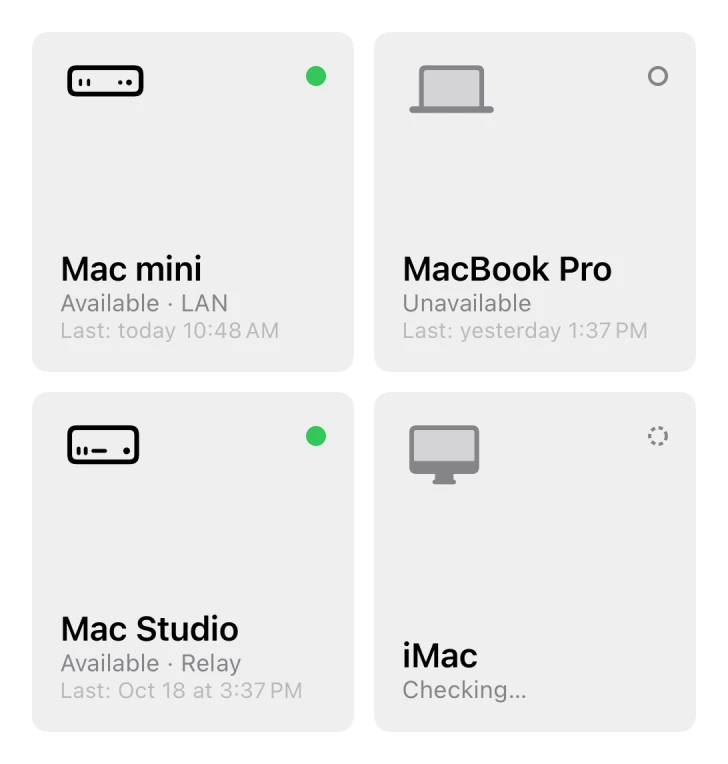
Widgets show the Mac computers from your address book with their status: available and over which path, unavailable, or still being checked.
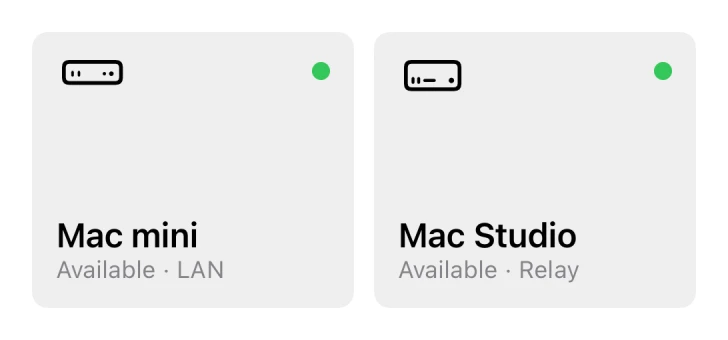
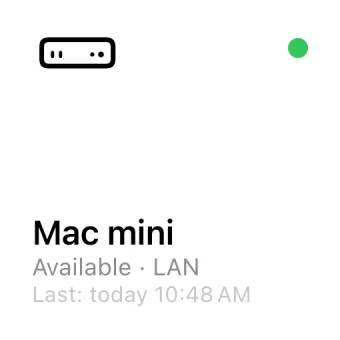
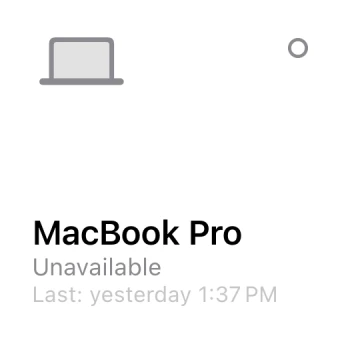
- Mac
- One Mac, its status and when you last connected.
- Two Macs
- Two Mac computers side by side.
- Four Macs
- Four Mac computers, in a medium or large widget.
Status at a glance
Available, with the path it would use: local network, VPN, internet or relay. Status is shown by shape as well as by color.
You choose the Mac
Edit a widget to pick the Mac for each spot. Empty spots fill with the ones you used most recently.
As fresh as the app
Widgets don’t go online on their own. They show what PocketRocket last found out—and once that’s more than 15 minutes old, they say so.
On every screen
On iPhone and iPad, on the desktop and in Notification Center of your Mac, and on Apple Vision Pro. In light, dark and tinted styles.
Lock Screen
A glance, no unlocking.
On iPhone and iPad, put the Mac widget on the Lock Screen: as a line above the clock, a circle, or a rectangle with the name and status.
Like any Lock Screen widget, it can be seen without unlocking. It shows the name and status of the Mac—never its screen.
Controls
One press. From anywhere.
Add Connect to Mac to Control Center, to the Lock Screen or to the Action button. Each control keeps its own Mac, so you can add one for every Mac you use.
- Connect to Mac
- Opens PocketRocket already connecting. On iPhone, iPad and Mac.
- Disconnect
- Ends the session without opening the app. On iPhone and iPad.
- Action button
- On iPhone with the Action button, choose Connect to Mac in Settings › Action Button—then press and hold to connect.
Siri and Shortcuts
Just ask. Or let a shortcut do it.
PocketRocket adds three actions to the Shortcuts app. They work with Siri right away—nothing to set up.

Is Mac Available?
Checks whether a Mac can be reached right now and answers yes or no, without opening the app.
Connect to Mac
Opens PocketRocket and connects to the Mac you choose.
Disconnect
Ends the session with one Mac—or every session—without opening the app.
Connect only when the Mac is ready
Is Mac Available? answers yes or no, so a shortcut can connect when the Mac is ready—and let you know when it isn’t.
Try saying
Connect to Mac mini with PocketRocket
Is my computer available in PocketRocket
Disconnect PocketRocket
Is Mac mini available?Connect to Mac miniSpotlight and quick actions
Type a name. Or touch and hold.
Spotlight
Search for the name of your Mac and tap the result to connect. The list of your Mac computers is indexed on your device only.
- Mac miniLast: today 10:48 AM
- MacBook ProLast: yesterday 12:00 PM
- MacBook AirLast: Oct 8 at 12:08 PM
- Mac StudioLast: Oct 5 at 12:08 PM

Quick actions
Touch and hold the PocketRocket icon to see up to four Mac computers you recently connected to from this iPhone or iPad.
On the Mac
Right in the menu bar.
PocketRocket for Mac puts its own icon in the menu bar—a screen with a rocket, so you can tell it from the rocket of PocketRocket Host. It lists your Mac computers with their status and when you last connected.
- Menu bar
- Choose a Mac to connect, or open the library or Connect with Code. Don’t need it? Turn it off in Settings › Menu Bar.
- Dock
- Control-click the PocketRocket icon in the Dock for the four Mac computers you used most recently, and a new window.

Notifications
Answer right in the notification.
In PocketRocket
When another device takes over your session, or someone starts using the Mac, the notification offers Reconnect. If the Mac is already open in another window: Show Window. If resuming didn’t work: Try Again.
 PocketRocket Host“iPad Pro” wants to connect.The device will see this Mac’s screen and can control it.AllowDeny
In PocketRocket Host
A missing permission opens the right place in System Settings. Install… or Update… for the microphone, Enable… for the camera. And when someone asks to connect: Allow or Deny.
While someone is connected remotely, the request comes without buttons—only a person at the Mac can decide.
Links
Every Mac has its own link.
Choose Copy Link on a Mac in the PocketRocket library and put the link wherever a tap should take you to it: a note, a calendar event, a shortcut, or a launcher on your Mac.
pocketrocket://connect/Mac%20Studio| Link | What it does |
|---|---|
pocketrocket://connect/name | Connects to the Mac with this name in your address book. |
pocketrocket://connect?id=identifier | Connects to one particular Mac. Widgets, Spotlight and the menu bar use this form—it keeps working after a rename. |
pocketrocket://library | Opens the PocketRocket library. |
pocketrocket://code | Opens Connect with Code, ready for a six-digit code. |
How the name is matched
- Capital letters, accents and quotation marks don’t matter, and - or _ count as spaces: mac-studio finds Mac Studio.
- PocketRocket connects only when exactly one Mac matches. Two with the same name, or none? The library opens and says why—with similar names, if there are any.
- Renamed a Mac? Links with the old name stop working—copy a new one.
- Spaces and special characters are encoded as in any web address: Mac Studio becomes Mac%20Studio.
Safe to tap
- A link only opens PocketRocket and connects to a Mac you could already tap in the app—your own, or one shared with you for good.
- It never contains a password or a code, and it can’t change settings or pair a device.
- If the Mac is in use on another device, PocketRocket asks before taking over.
- Tapping the same link several times in a row connects once.
On iPad and Mac, a link to another Mac opens in a new window. iPhone shows one Mac at a time, so a link to a different Mac ends the current session first.
Availability
What works where
| Feature | iPhone | iPad | Mac | Apple Vision Pro |
|---|---|---|---|---|
| Widgets | Available | Available | Available | Available |
| Lock Screen widgets | Available | Available | Not available | Not available |
| Connect to Mac control | Available | Available | Available | Not available |
| Disconnect control | Available | Available | Not available | Not available |
| Siri and Shortcuts | Available | Available | Available | Available |
| Spotlight | Available | Available | Available | Available |
| Quick actions | Available | Available | Not available | Not available |
| Menu bar and Dock menu | Not available | Not available | Available | Not available |
| Notification buttons | Available | Available | Available | Available |
| pocketrocket:// links | Available | Available | Available | Available |
Before you start.
Which devices have PocketRocket widgets, controls and Siri?
Widgets, Siri, Shortcuts, Spotlight and links work on iPhone, iPad, Mac and Apple Vision Pro. Lock Screen widgets and quick actions are on iPhone and iPad. Connect to Mac in Control Center is on iPhone, iPad and Mac, and the menu bar and Dock menu are on the Mac.
Why does the PocketRocket widget say a Mac wasn’t checked?
Widgets don’t go online on their own—they show what PocketRocket last found out about each Mac. When that’s more than 15 minutes old, the widget says Not checked. Open PocketRocket and it checks again.
Widgets refresh when the status of a Mac changes, and about every 30 minutes.
Can someone use a PocketRocket link to get into my Mac?
No. A pocketrocket:// link only opens PocketRocket on the device where it’s tapped and connects to a Mac that’s already in that device’s address book. It never contains a password or a code.
A Mac appears in the address book only through your Apple Account, or when its owner gives you permanent access. If the Mac is in use on another device, PocketRocket asks before taking over.
What happens to a link when a Mac gets a new name?
Links with the old name stop working: PocketRocket opens the library and suggests similar names. Copy the link again after renaming. Widgets, Spotlight, controls and the menu bar keep working—they don’t rely on the name.
Can people see my Mac computers on the Lock Screen?
Only if you add the PocketRocket widget there. Like any Lock Screen widget, it can be seen without unlocking: it shows the name and status of a Mac—never its screen.
Leave your Mac at home. Take it everywhere.
Install PocketRocket Host
On the Mac you want to reach. It lives in the menu bar.
Get the PocketRocket app
On iPhone, iPad, Apple Vision Pro or another Mac.
Tap your Mac
Use the same Apple Account, and your Mac shows up on its own.
PocketRocket Host needs a Mac with Apple silicon and macOS 26.1 or later. The PocketRocket app is coming soon to the App Store.