Control your Mac from iPhone
Your Mac fits in your pocket.
Everything on your Mac, a tap away—on the couch, on 5G or in a hotel abroad.
Requires iOS 26 or later and PocketRocket Host on a Mac with Apple silicon and macOS 26.1 or later. The PocketRocket app is coming soon to the App Store.
The short version.
Shaped for iPhone. No black bars.
⎋, fn, ⌃, ⌥ and ⌘—in a glass key bar.
Touch or Touchpad. Your call.
Your connection, live in the Dynamic Island.
Works on 5G. Nothing to configure.
Your iPhone becomes the camera of your Mac.

How do I control my Mac from my iPhone when I’m away from home? — Couch. Café. Another country.
Install PocketRocket Host on your Mac and PocketRocket on your iPhone, both signed in to the same Apple Account. Your Mac appears on its own—no IP addresses, no codes. PocketRocket tries your local network first, then a VPN if you use one, then a direct connection, then an encrypted relay, so it works on hotel Wi‑Fi and 5G.
On the relay path both sides connect outward, so it works behind carrier-grade NAT and on 5G. How PocketRocket picks a path ›Carrier-grade NAT and 5G ›
At home.
On the same network, a green LAN badge says you’re local.
On 5G.
Away from Wi‑Fi, PocketRocket starts through the relay and moves to a more direct path when it can.1
Abroad.
Tested on 5G and on hotel Wi‑Fi abroad.
Made to measure.
PocketRocket gives your Mac a virtual display with the exact proportions of your iPhone. No black bars, no cropping.
Prefer more room to bigger text? In the session bar, slide Display scale from Retina 1:1 up to 200 percent—more of your desktop fits, without restarting the stream. Your Mac even names the display after your device.
Fold it. Unfold it. Still your Mac.
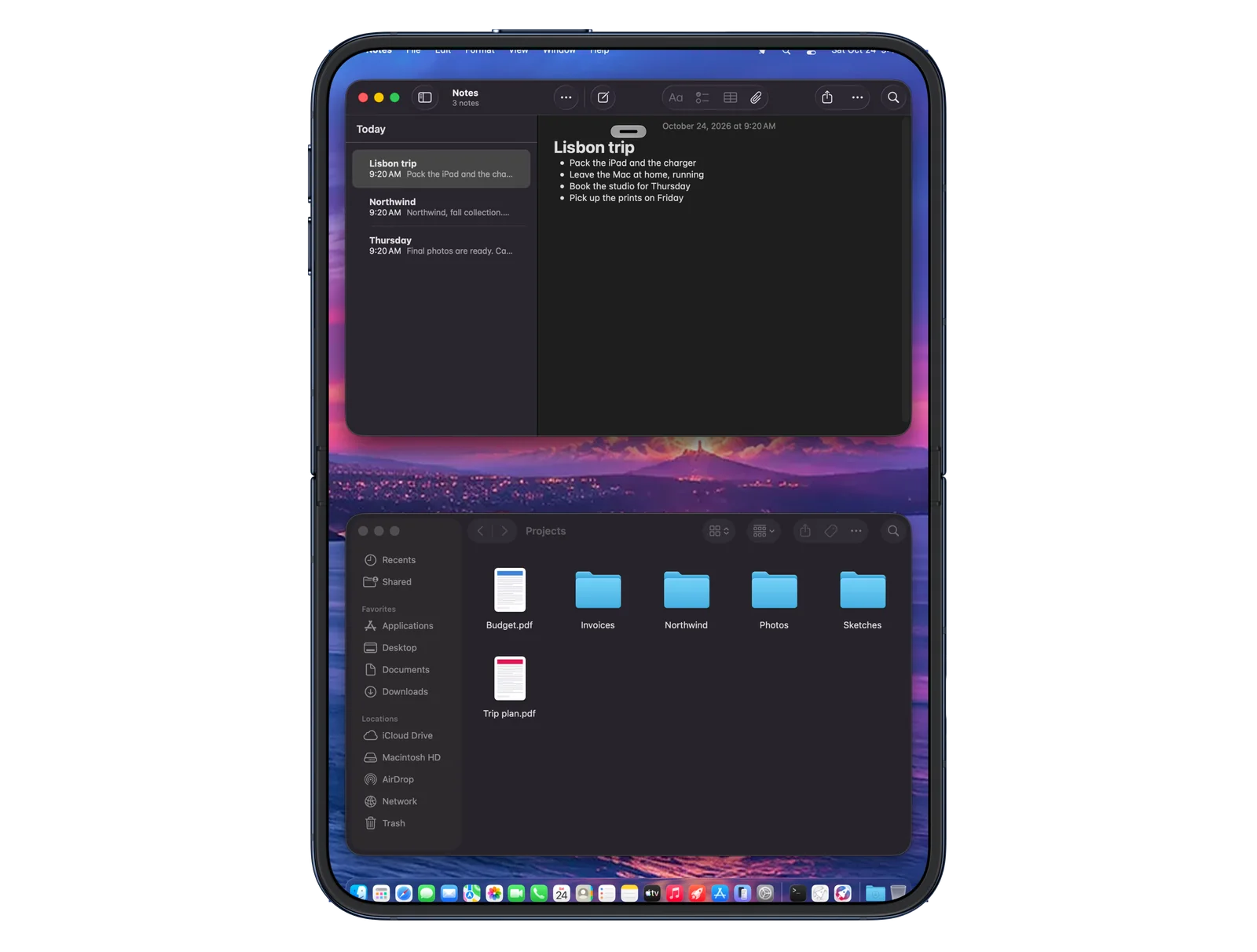
On iPhone Duo, your Mac fills the outer screen from edge to edge. Open it, and the same session stretches across the whole inner screen.
It’s the same connection—nothing to reconnect, just more room for your desktop.
Can I use iPhone Duo like a small laptop? — Half open. Ready to type.
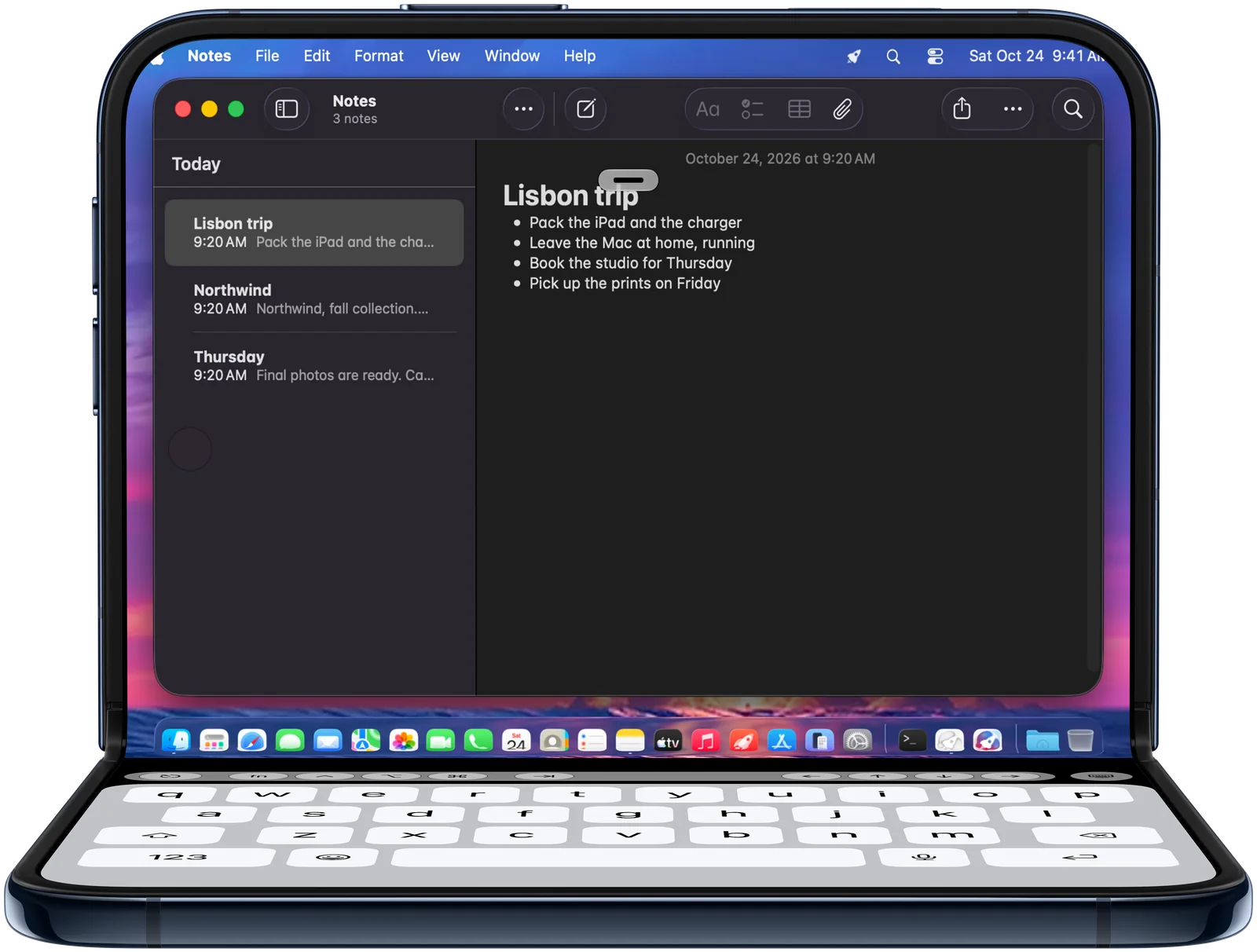
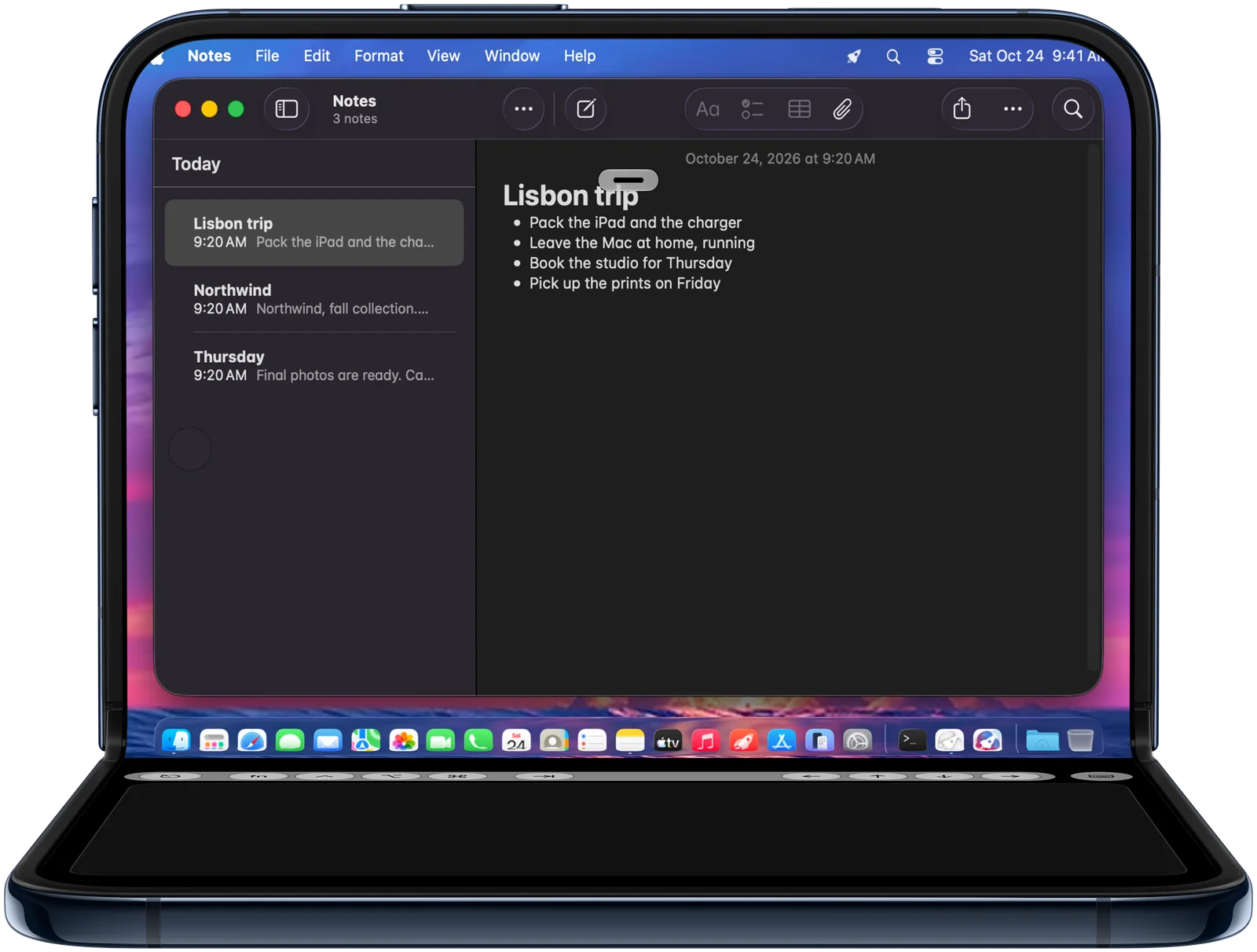
Yes. Bend iPhone Duo to about a right angle, with the hinge across. The upper half shows your Mac, sized to that half so nothing is covered, and the lower half holds the keyboard, with ⎋, fn, ⌃, ⌥, ⌘, tab and the arrows right under the hinge. Hide the keyboard, and the lower half becomes a trackpad—one tap on the keyboard icon brings it back.
On the trackpad, you move the pointer, click, scroll with two fingers and tap with two fingers to right-click. Open iPhone Duo flat again, and your Mac fills the whole screen.
Can I use ⌘, Escape and arrow keys on iPhone? — The keys iPhone never had.
Yes. A Liquid Glass key bar adds ⎋, fn, ⌃, ⌥ and ⌘ plus the arrow keys. Modifiers stay latched until your next key, and fn with the arrows gives you Page Up, Page Down, Home and End. Key repeat runs on iPhone itself. You can hide the keyboard right from the bar, and a two-finger swipe up from the bottom edge brings it back.
Hands-on.
Tap ⌘, then C.
| Key bar | On your Mac |
|---|---|
| fn + ↑ / ↓ | Page Up / Page Down |
| fn + ← / → | Home / End |
| ⌃ ⌥ ⌘ (tap) | Stays latched for the next key |
| ⎋ | Escape |
How do I right-click on a Mac from iPhone? — Tap it. Or track it.
Pick the mode that suits the moment. Touch clicks exactly where your finger lands; Touchpad moves a pointer like a trackpad, at a speed from 50 to 200 percent. To right-click, tap with two fingers—or, in Touch mode, touch and hold for a second. Your Mac gets a real right-click either way.
Clicks exactly where your finger lands.
Can I use Mission Control from iPhone? — Three fingers. The whole Mac.
Yes—swipe as you would on a Mac trackpad. Three fingers left or right take you to the next Space or full-screen app, up opens Mission Control, and down shows the windows of the app you’re in. It works anywhere on the picture of your Mac, in Touch and Touchpad mode, and the opposite swipe closes it, as on a trackpad. Your Mac uses its own keyboard shortcuts for this, so it works even if you’ve changed them.
Mac gestures
Swipe between Spaces
Swipe left or right with three fingers
The next Space or full-screen app
Mission Control
Swipe up with three fingers
All windows and desktops at a glance
App Exposé
Swipe down with three fingers
The windows of the current app
One swipe, one action, and the opposite swipe closes Mission Control or App Exposé. Choose three or four fingers, or Off, for each gesture in Settings › PocketRocket. A tap with two or three fingers still right-clicks.
Can I leave the app without losing my session?Step away. Stay connected.
Yes. While you’re connected, a Live Activity shows a rocket and the current connection path in the Dynamic Island. Switch to another app or lock your iPhone, and the session waits in the background for as long as you choose—from 30 seconds to 10 minutes, or not at all. Come back, and it resumes behind a single glass curtain.
PocketRocket switches paths without dropping the session and resumes after a network change or a trip to another app.
Not just the screen.
Hear your Mac.
The sound of your Mac plays on iPhone, in stereo.
Lend it your voice.
Your iPhone microphone becomes the microphone of your Mac for the session.
Be its camera.
Pick a lens, and your Mac sees PocketRocket Camera.
Copy here. Paste there.
Text, images and files, both ways.2
Isn’t this what iPhone Mirroring does? — Same idea. Opposite direction.
No—it works the other way around. iPhone Mirroring shows your iPhone on your Mac while the two are near each other. PocketRocket brings your Mac to your iPhone, over your local network or the internet, from home Wi‑Fi to 5G. Different directions, different jobs: use each for what it does best.
iPhone MirroringYour iPhone on your Mac, nearby.
PocketRocketYour Mac on your iPhone, near or far.
Before you start.
How do I control my Mac from my iPhone when I’m not at home?
Install PocketRocket Host on your Mac and PocketRocket on your iPhone, both signed in to the same Apple Account; your Mac appears as a tile, and one tap connects—on Wi‑Fi or 5G.
PocketRocket tries your local network first, then a VPN if you use one, then a direct connection, then an encrypted relay. There are no IP addresses to type and no codes.
Can I use ⌘, Escape and arrow keys on iPhone with a remote Mac?
Yes: a Liquid Glass key bar adds ⎋, fn, ⌃, ⌥ and ⌘ plus the arrow keys, with modifiers that stay latched for the next key.
With fn, the arrow keys give you Page Up, Page Down, Home and End. Key repeat runs on iPhone itself. You can hide the keyboard right from the bar, and a two-finger swipe up from the bottom edge brings it back.
How do I right-click on a remote Mac from iPhone or iPad?
Tap with two fingers; in Touch mode you can also touch and hold for a second, and with a mouse or trackpad on iPad, right-click works as it does on a Mac.
Touch clicks exactly where your finger lands; Touchpad moves a pointer like a trackpad, at a speed from 50 to 200 percent.
Can I open Mission Control or switch Spaces from iPhone or iPad?
Yes: swipe with three fingers anywhere on the picture of your Mac—left or right for the next Space, up for Mission Control, down for App Exposé.
In Settings › PocketRocket, choose three or four fingers for each gesture, or turn it off. On iPad, four-finger swipes reach your Mac only with the multitasking gestures of iPadOS turned off. Your Mac uses its own Mission Control shortcuts, and a tap with two or three fingers still right-clicks.
Can I use iPhone Duo as a small laptop for my Mac?
Yes: bend it to about a right angle, and your Mac moves to the upper half while the keyboard, with a bar of ⌘, ⌥, ⌃ and arrow keys, fills the lower half.
Hide the keyboard, and the lower half becomes a trackpad: move the pointer, click, scroll with two fingers, or tap with two fingers to right-click. The key bar stays, and its keyboard icon brings the keyboard back. Open iPhone Duo flat again, and your Mac fills the whole screen.
Does my session stay connected when I leave the app on iPhone?
Yes, for as long as you choose—from 30 seconds to 10 minutes, or not at all—while a Live Activity in the Dynamic Island shows the connection.
The Live Activity shows a rocket and the current connection path. Come back, and the session resumes behind a single glass curtain.
Is PocketRocket the same as iPhone Mirroring?
No: iPhone Mirroring shows your iPhone on your Mac, while PocketRocket shows your Mac on your iPhone—and on iPad, Apple Vision Pro and another Mac.
iPhone Mirroring works while the two are near each other; PocketRocket connects over your local network or the internet, from home Wi‑Fi to 5G.
Can I access my Mac remotely over the internet without a VPN or port forwarding?
Yes: PocketRocket finds your Mac through iCloud and connects over your local network, an optional VPN, a direct connection or an encrypted relay—whichever works first.
Is PocketRocket end‑to‑end encrypted?
Yes: every channel is encrypted end to end with ChaCha20‑Poly1305, using fresh X25519 keys for each session, and your Mac refuses unencrypted traffic.
What are PocketRocket’s system requirements?
PocketRocket Host needs a Mac with Apple silicon and macOS 26.1 or later, and the PocketRocket app needs iOS 26, iPadOS 26, visionOS 26 or macOS 26, or later.
Leave your Mac at home. Take it everywhere.
Install PocketRocket Host
On the Mac you want to reach. It lives in the menu bar.
Get the PocketRocket app
On iPhone, iPad, Apple Vision Pro or another Mac.
Tap your Mac
Use the same Apple Account, and your Mac shows up on its own.
PocketRocket Host needs a Mac with Apple silicon and macOS 26.1 or later. The PocketRocket app is coming soon to the App Store.